Verify Conversion Events
Verifying your CAPI integration will let you know it's accurately tracking events across all browsers and devices. If you don’t do this, you may experience ad delivery and measurement challenges.
We recommend implementing both the Pixel and CAPI to optimize campaign performance. Sharing the same events using both implementations can help minimize signal loss and achieve more efficient results, but may cause events to be double-counted. Set up event deduplication to avoid attribution and reporting discrepancies.
We also recommend passing match keys for better match rates and higher attribution rates. This lets you pass high-quality match keys and identifiers (like email, phone number, IP, and click ID) using your implementations to increase conversion attribution.
Conversion events can be verified using these methods:
- Events Manager: Trigger conversion events in real time to see if your events are being captured.
Get Last Fired At: Retrieve the latest time conversion events were sent, in ISO 8601 format.Get A Report: Get a report for your conversion events. This method is recommended for verifying custom conversion events. Read the guide.
1. Check signal delivery
- Go to the Events Manager and check that all your standard and custom conversion events are listed. If any of your events aren’t listed, add those events to your integration.
- Recommendations for conversions: Ensure
PURCHASE,LEAD, andSIGN_UPare included. - Requirements for dynamic product ads (DPA): Ensure
VIEW_CONTENT,ADD_TO_CART, andPURCHASEare included.
- Recommendations for conversions: Ensure
- Verify that your total event counts make sense. For example, if you get a lot of traffic on your site,
PAGE_VISITshouldn’t be low.
2. Verify events
Test events are subject to a rate limit of 10 events per second.
Batch events aren’t currently supported. Only one event per request will be displayed.
- Open Event Testing in the Ads Manager.
- Copy the test ID provided and set it as
"test_id”in thePOSTrequest. - Send test requests to the CAPI endpoint.
Remove
“test_id”field from the request before deploying to production. - Verify events display in Event Testing and that the metadata, match keys, and conversion ID match your request.
Events may be delayed for up to five seconds before appearing on the interface.
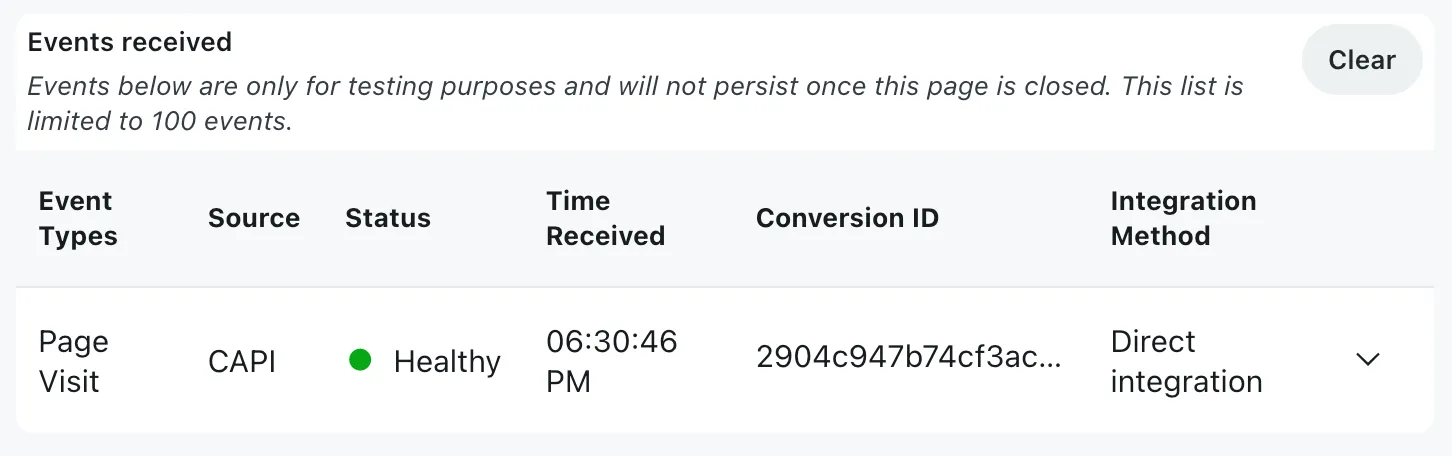
3. Trigger conversion events
Explore your site to manually trigger events and ensure the correct events are being captured. For example, when you add an item to your cart, an ADD_TO_CART event should fire.
If you’re using the integration with DPA, we recommend configuring at least these actions:
| Action | Event |
|---|---|
| View a variation of a product | VIEW_CONTENT |
| Add product to cart | ADD_TO_CART |
| Make a test purchase | PURCHASE |
The event status will be received if the event was configured correctly.
Some events may not be captured in Events Testing. If you don’t see any event, try checking it with the Pixel Helper.
As you do that, those events will appear in the table with their status, timestamp, and setup method. Expand each event to reveal more information:
- Received Pixel ID: Your Pixel ID
- Conversion ID: The event’s unique ID, used for event deduplication
- Match keys: Shared user or device identifiers
- Metadata: More details relevant for the event
- Referrer URL: The page URL where the event is firing on
If you don’t see an event or you see an issue, the event was improperly configured. This means that the action may not be firing, which may affect your analytics. We strongly recommend troubleshooting errors as soon as possible. You can hover over issues to see information on event misconfigurations.
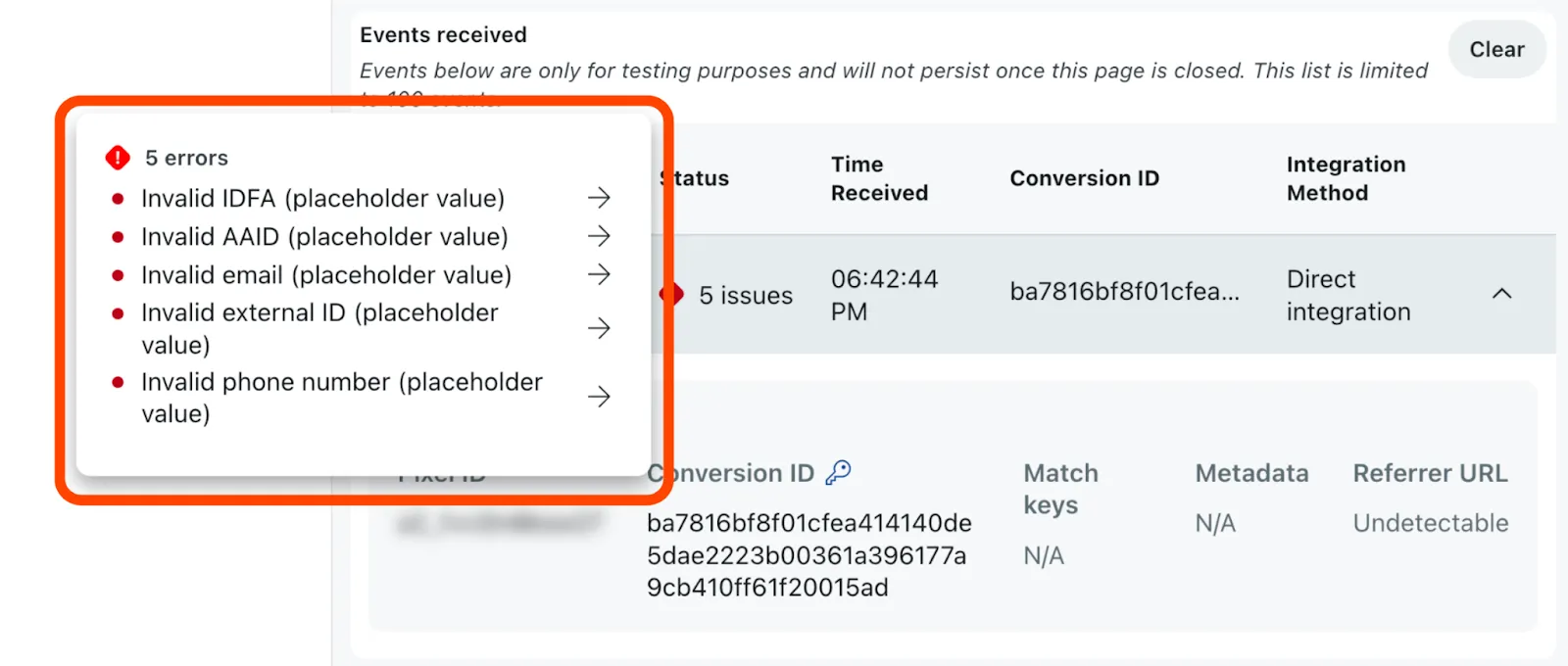
4. Troubleshooting errors
If any of your events have issues, you can review them in Diagnostics to view your most recent conversion event issues. Expand an issue to get more details and learn how to resolve it. If you decide not to fix it, select Ignore Issue to move it to the Ignored tab. Issues may take up to 24 hours to clear after they’ve been resolved.
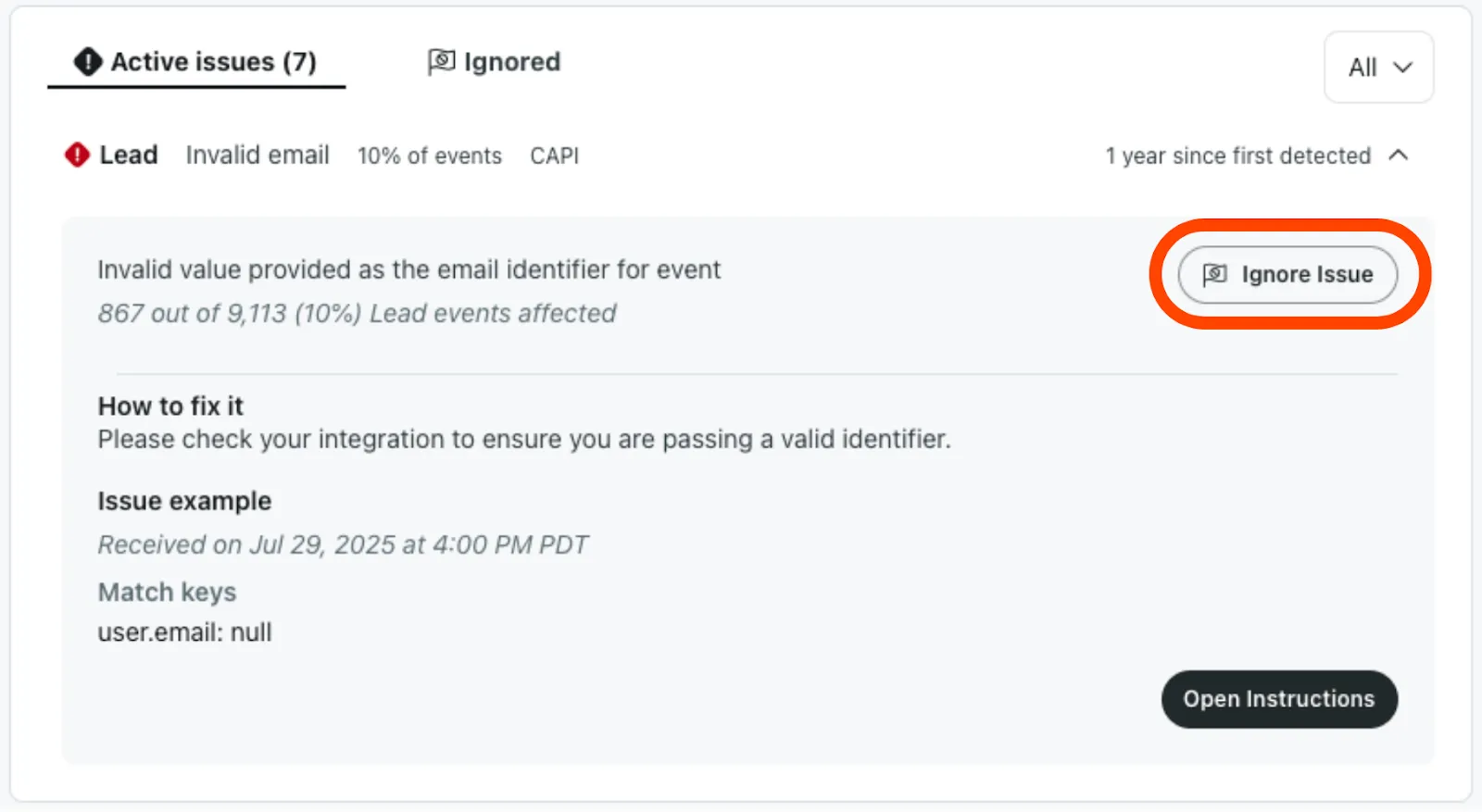
See more information on errors and warnings by expanding each conversion event. You must resolve errors for your integration to work properly. Warnings should be resolved, but your integration will still work if left unresolved. Learn more about common errors and warnings and their solutions.
Diagnostics will not call out product metadata not passing. We strongly recommend using the Pixel Helper to check that this type of metadata is being passed.